What is Packet Tracer?

Packet Tracer (PT) is a simulation software that is used to study complex concepts of the Cisco CCNA network level. With Packet Tracer you can design, build, configure, and troubleshoot using virtual equipment. Packet Tracer provides a simulation and visualization with real-time continuous updates from the network logic. We use Packet Tracer to explore concepts, conduct experiments and test our understanding, so it is very useful for lectures, group and individual labs, homework and competitions.
Features
- Logical and Physical Workspaces
- Real-time and Simulation Modes
- Global event list (packet sniffer); Adjustable Windows
- LAN: Ethernet (including CSMA/CD*), 802.11 wireless
- Switching: VLANs, 802.1q, trunking, VTP, DTP, STP, RSTP
- TCP/IP: HTTP, DHCP, Telnet, TFTP, DNS, TCP*, UDP, IP,ICMP, and ARP including IPv6
- Routing: static, default, RIPv1, RIPv2, EIGRP, OSPF (single and multiple area) and inter-VLAN routing
- WAN: Frame Relay, PPP, HDLC
- Multiuser Connection: to allow peer to peer collaboration
Note: Current version of Packet Tracer does not run in Native mode in Mac OS or Linux. Windows Emulators are required.
Logical Workspace is the primary workspace for creating networks of any size and CCNA-level configuration.
Physical Workspace promotes an intuitive interaction with physical devices, with physical layout and distance representation including intercity, city, building, wiring closet, and device views. They include a cluster function to group devices, a custom device creation tool, and an array of devices (routers, switches including a layer3 3560 switch, hubs, functional servers, Linksys gear, WAN clouds, a Multiuser connection and cable and DSL modems.) The functional servers support HTTP, DHCP, TFTP, and DNS services.
Real-time Mode models real-time protocol updates and medium-fidelity Cisco IOS CLI configuration of switches and routers.
Simulation Mode allows for a detailed study of protocol interactions.
The list of supported protocols has grown to now also include 802.11 wireless, VTP, DTP, STP,RSTP, HTTP, DHCP, Telnet (with SSH), TFTP, DNS, single and multiple area OSPF, and CDP. The list of protocols to filter in the Event List has increased to allow the user to filter on most of these additional protocols.
Global event list (packet sniffer): The packet sniffer in Packet Tracer allows students to see some of the same kinds of information that they would see with a commercial packet sniffing program, such as Wireshark. This functionality allows students to see just the amount of information that is appropriate for a CCNA level student without overwhelming them with the amount of information that would be seen in the commercial product.
The GUI has zoom view tools, edit functions (copy, paste, and undo), improved window management, and ability to show/hide link lights and device labels. All pop-up windows are treated as independent window units so they can be placed anywhere on the desktop and manipulated independent of each other. Windows can be maximized, minimized and accessed by taskbar buttons or the
Multiple languages are supported. Instructions are included for self-translation into other languages. To locate these instructions, go to the Help file and click on Translation Process in the navigation panel.
Physical interfaces model realistic equipment set up including adding and removing components.
Knowledge representations offer discovery learning by enabling "what if?" scenarios using the simulation-mode and visualization features that allow the student to “freeze time”.
Activity Wizard enables instructors to create automatically scored practice activities and enables instructors and students to easily create and share network templates. New features have been added to Activity Wizard. These features include enhancements to the user interface, feedback on performance in completing an activity, assessment of user-created PDUs, and the addition of the Variable Manager. The Variable Manager enables the instructor to create multiple activities based on a single activity and the use of variables. These variables may be used in the activity instructions and initial values to create different correct answers each time.
Routers

Router Models:
- 1841, 2620XM, 2621XM, 2811, Generic Router-PT, Generic Router Empty
Switches

Switch Models:
- 2950-24, 2950T-24, 2960-24TT, Generic Switch-PT, Generic Switch Empty, 3560-24PS, Generic Bridge-PT
Hubs

Hub Models:
- Generic Hub-PT, Generic Repeater-PT
Wireless Devices

Wireless Device Models:
- Generic Access Point-PT, Generic Access Point-PT-A, Generic Access Point-PT-N, Linksys-WRT300N
End Devices

End Device Models:
- Generic PC-PT, Generic Laptop-PT, Generic Server-PT, Generic Printer-PT, IP Phone-7960
WAN Emulation

WAN Models:
- Generic Cloud-PT, Generic Cloud Empty, DSL-Modem-PT, Cable-Modem-PT
Custom Made Devices

Custom Models:
- 1841 WIC-2T, 2621XM NM-2FE2W (2) WIC-2T, 2821 NM-ESW-161 (2) WIC-2T, Generic Wireless PC
Multiuser Connection

- Multiuser Remote Network
Connections
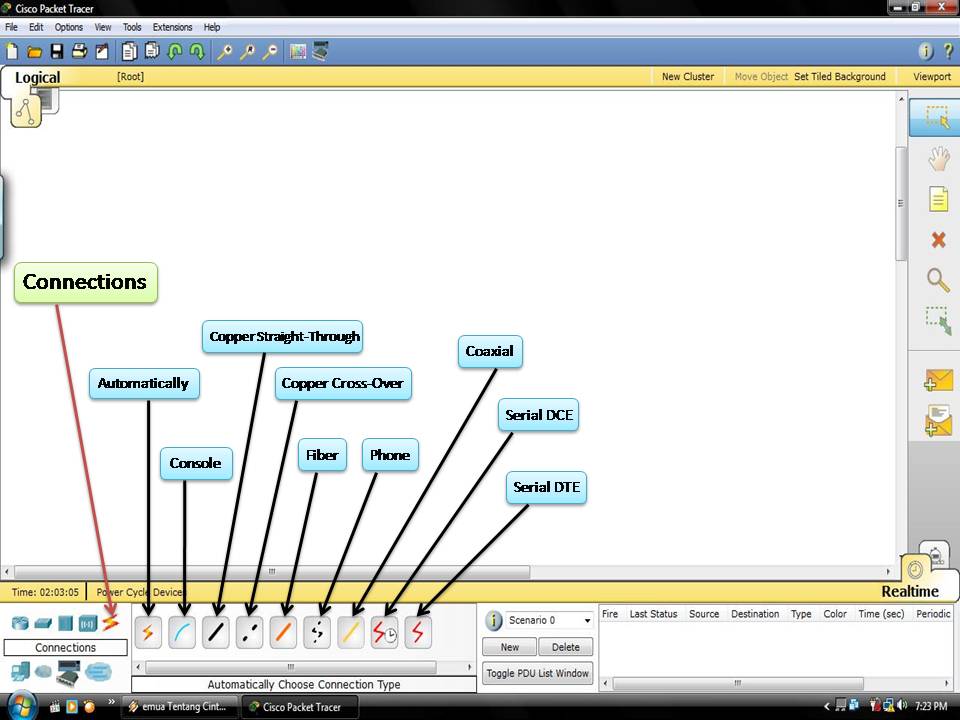
Connection Models:
- Automatically Choose Connection Type, Console, Copper Straight-Through, Copper Cross-Over, Fiber, Phone, Coaxial, Serial DCE, Serial DTE
Common Tools

The Common Tools Bar contains tools you will use regularly to interact with the work space:
- The Select tool is used to drag, highlight and select devices
- The Move Layout tool is used to move the workspace
- The Place Note tool is used to add notes or labels in the workspace
- The Delete tool is used to delete devices and links

Zoom viewing tools
- ZoomIn (Ctrl+I) to zoom into the workspace.
- ZoomOut (Ctrl+U) to zoom out of the workspace.
- ZoomReset (Ctrl+T) to reset the zoom of the workspace.
Editing tools
- Copy (Ctrl+C) to copy the selected item.
- Paste (Ctrl+V) to paste the selected item.
- Undo (Ctrl+Z) to undo the previous action.
The drawing Palette tool (Ctrl+D) and Device Template Manager.
A Cluster function
- Cluster function will group devices into a cloud.
A Move function
- Move will take a device and move it into or out of a cloud.
Some Tips

- If you would like to create multiple instances of the same device, hold down the CTRL key before clicking on the device. Click in the workspace placing a new device with each click.
- To cancel the process of creating multiple instances, click on the device again. (You can also hit the ESC key or simply click on another tool.)
- Devices can be dragged to a new location. Multiple devices can be selected by clicking and dragging a selection box around the desired devices. You can also hold down the SHIFT key while you click on multiple devices you wish to make part of your multiple selections. Once selected, highlighted devices can be moved around as a unit.
- A multiple selection can also be deleted by clicking on the Delete tool. The Delete tool can also be used to delete one device at a time.
- Use the Move Layout tool in place of the horizontal and vertical scroll bars to reposition your topology if it gets too big or if other windows are blocking your view.
- Use the Place Note tool to add information directly to the topology instead of using the Network Information window.
- The Inspect tool allows you to look at a device’s table such as the ARP, MAC and routing tables.
- At any point, you can save your topology using the Save button on the tool bar or the Save command from the File menu. Be sure to save it with the .pkt extension.
